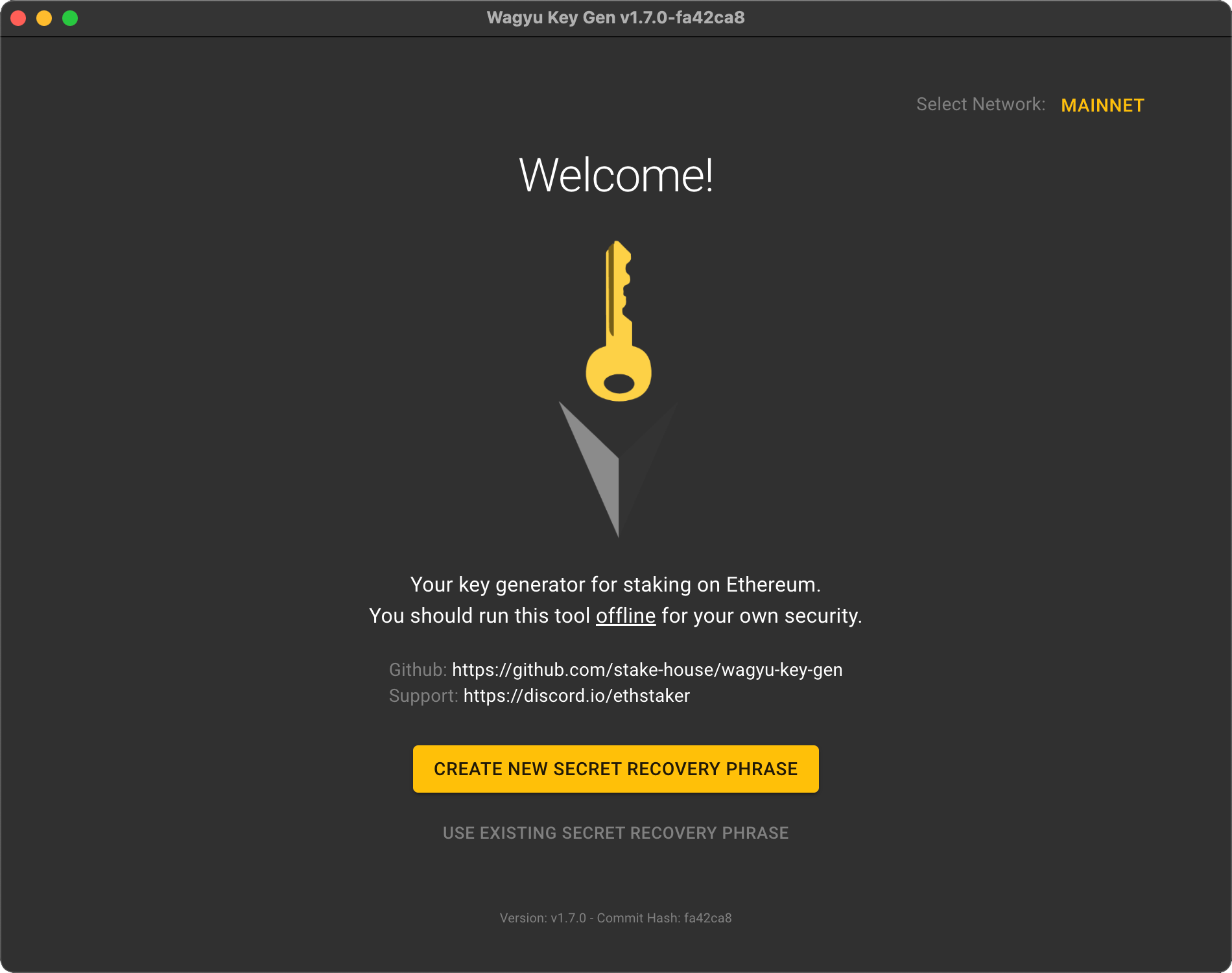
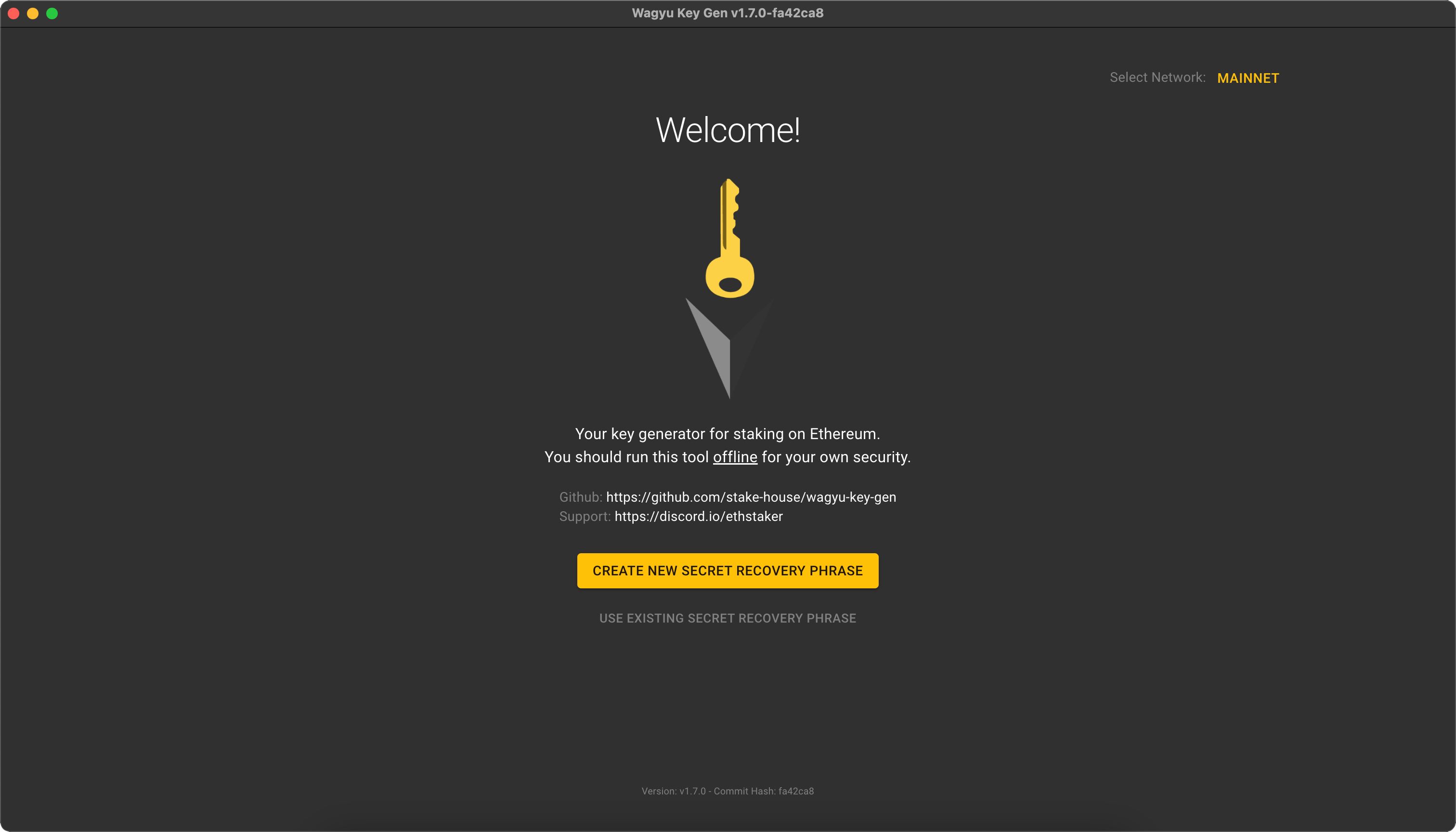
Generate Keys in 4 Easy Steps
Finally, a tool you can use without being a shadowy super coder!
1
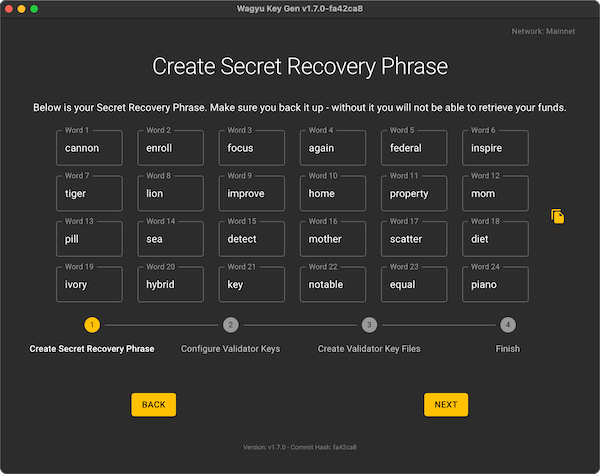
Create Seed Phrase
2
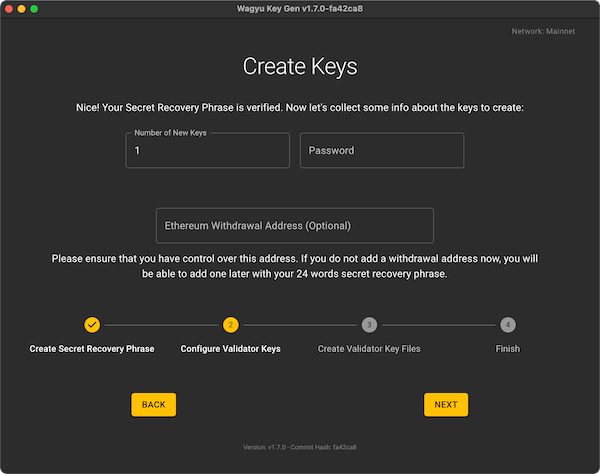
Configure Keys
3
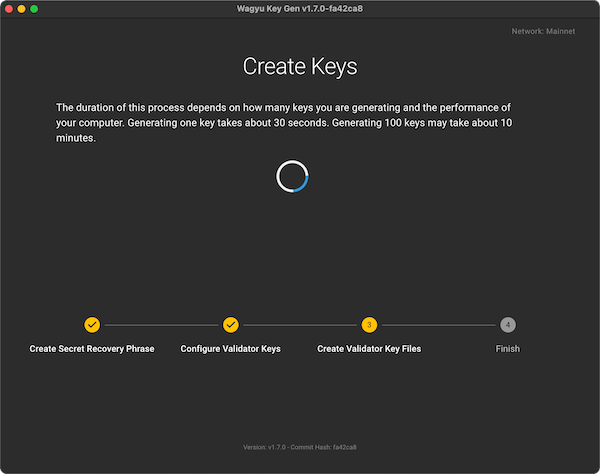
Create Keys
4
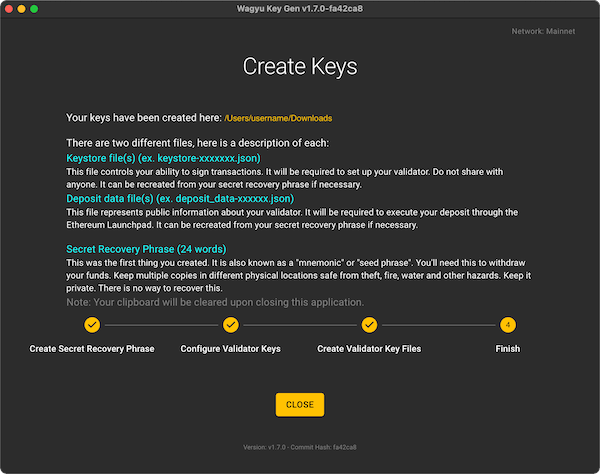
Save Files



Installation
Linux
- Download the app
- Find the downloaded file and make it executable
- Double-click the file to launch the app
On Ubuntu 22.04, you might need to install libfuse2 first before running the app with something like:
sudo add-apt-repository universe
sudo apt install libfuse2
As an alternative to having FUSE, you can manually extract the AppImage asset and run it. In a Terminal, it would look like:
chmod 777 Wagyu.Key.Gen-1.7.0.AppImage
./Wagyu.Key.Gen-1.7.0.AppImage --appimage-extract
cd squashfs-root
./AppRun
Windows
- Download the app
- Find the downloaded file and double-click it to launch the app
macOS
- Download the app
- Find the downloaded file and double-click it
- In the popup window, drag the Wagyu Key Gen app into the Applications folder to install it
- In your Applications folder, double-click the app to launch it
- If presented with the message
"Wagyu Key Gen" cannot be opened because the developer cannot be verified:- Select “Cancel”
- Open the Settings app and go to Privacy & Security
- Scroll down to the Security section and look for the message “Wagyu Key Gen was blocked from use because it is not from an identified developer”
- Select “Open Anyway”
- Enter your password if prompted
- A new message will appear:
macOS cannot verify the developer of "Wagyu Key Gen". Are you sure you want to open it? - Select “Open” and the app will launch
- From now on you can just open it from your Applications folder like any other app